How to Use Emoji Kitchen on iPhone
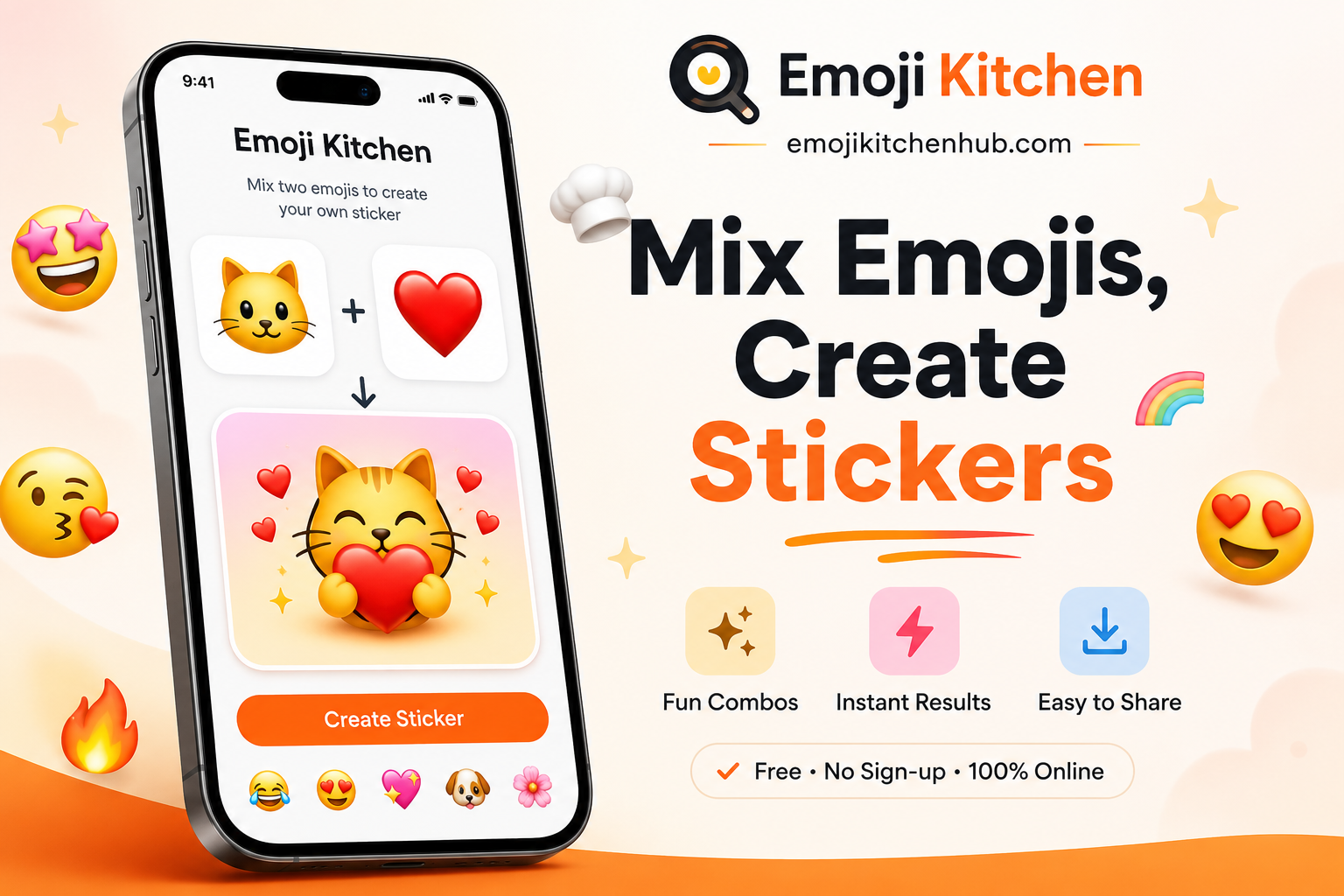
The standard iPhone emoji keyboard inserts emoji characters into text. A sticker-style mashup is a different format, so its creation and sharing workflow may differ.
You can explore supported emoji combinations on iPhone through a browser-based mixer. The available actions depend on the current tool, iOS version, browser and destination application.
Quick answer: Open the browser-based mixer, select two supported emojis and check whether a result appears. Use the available copy or download control if it is supported. A sticker-style mashup is an image, not a new emoji character added to the iPhone keyboard.
Table of Contents
- Can You Use Emoji Kitchen on iPhone?
- How to Use Emoji Kitchen on iPhone
- Do You Need an Emoji Kitchen iPhone App or Download?
- Emoji Kitchen Browser iPhone vs. Gboard on iPhone
- How to Copy, Download, and Share Emoji Kitchen Stickers
- Best Emoji Kitchen Combinations for iPhone
- Emoji Kitchen for iPhone Not Working? Try These Fixes
- Are Emoji Kitchen Stickers Real iPhone Emojis?
- FAQs
- Using Emoji Kitchen on iPhone
Can You Use Emoji Kitchen on iPhone?
Yes. You can use Emoji Kitchen for iPhone through a mobile browser. Open the mixer, select two emojis, wait for the result, then copy or save the sticker. You can also use Emoji Kitchen WhatsApp to share your custom emoji mixes with friends and chats.
The main question is how to create and use an image-based mashup on an Apple device. A browser-based tool provides a separate workflow from the standard iPhone emoji keyboard, which is designed for ordinary text characters.
So, does iPhone have Emoji Kitchen built into the default Apple keyboard? No. It is not a standard keyboard feature that appears beside your normal iPhone emojis. However, you can still access Emoji Kitchen on iPhone through a browser-based tool.
This method is free, works without sign-up, and gives you a simple way to create a custom sticker from two compatible emojis. Open the Emoji Kitchen tool, choose your pair, and save the result for messages, posts, or group chats.
How to Use Emoji Kitchen on iPhone
Learning how to get Emoji Kitchen on iPhone takes only a few steps. You do not need to install a special keyboard or search for an Emoji Kitchen app iPhone download.
- Open Emoji Kitchen Hub in Safari or Chrome.
Use your normal iPhone browser and open the emoji mixer. - Tap Start Mixing or open the mixer.
The page will show two emoji selection spaces. - Choose your first emoji.
Start with the main idea you want to show. A face can set the mood, while an animal, heart, food item, flower, hand, or symbol can set the theme. - Choose a second compatible emoji.
Add another emoji to create the mashup. Try faces with hearts, animals with fire, food with smiling faces, or nature symbols with stars. - Check the finished result.
Your custom emoji mix will appear when the pair is supported. If you see “No combo found,” switch one emoji and try again. - Tap Copy or Download.
Copy the image for a message you want to send now. Download it when you want to save the sticker for later.
That is how to use Emoji Kitchen on iPhone without relying on an extra keyboard. You can also view popular Emoji Kitchen combos when you need quick ideas for funny, cute, or aesthetic stickers.
Do You Need an Emoji Kitchen iPhone App or Download?
No separate app is needed for the browser route.
Searches like “Emoji Kitchen iPhone download,” “Emoji Kitchen download free iPhone,” and “Emoji Kitchen app iPhone” usually come from people who want faster access. The easiest option is to open the browser tool directly and, if you want, add a shortcut to your iPhone Home Screen.
Here is the difference between the main options:
|
Option |
What It Does |
Best For |
|
Emoji Kitchen Hub in a browser |
Mixes two supported emojis into a sticker-style image |
Making, copying, and downloading mashups |
|
Gboard keyboard |
Offers typing tools, emoji search, GIFs, and stickers |
People who want an optional Google keyboard |
|
Downloaded PNG sticker |
Saves your finished emoji mix as an image |
Sharing later in chats, posts, and stories |
Emoji Kitchen iPhone free access is easiest through a browser. You select the two emojis, create a sticker, and save it when needed.
A downloaded file is not a new iPhone keyboard character. It is an image that you can upload, paste, or attach in apps that support image sharing.
Emoji Kitchen Browser iPhone vs. Gboard on iPhone
The browser method is the most dependable way to use Emoji Kitchen on iPhone.
Gboard is available for iPhone and can help with normal typing, emoji search, GIFs, and some sticker features. However, it should not be treated as a guaranteed Emoji Kitchen route on iOS. If your goal is to make emoji mashups, use the browser mixer first.
|
Feature |
Emoji Kitchen Browser iPhone |
Gboard on iPhone |
|
Create emoji mashups |
Yes, through the mixer |
Not the main method to rely on |
|
Requires installation |
No |
Yes |
|
Works in Safari or Chrome |
Yes |
No, it is a keyboard app |
|
Copy or download a result |
Yes |
Depends on the feature and app |
|
Best for |
Making custom emoji stickers |
Everyday typing, GIFs, emoji search |
Some people search “emoji kitchen Gboard iPhone,” “Gboard Emoji Kitchen iPhone,” “Gboard Emoji Kitchen on iPhone,” or “Emoji Kitchen Gboard on iPhone.” These searches are understandable, but the browser tool is the clearer answer for iPhone users.
Browser access may work on a new iPhone, iPhone SE, iPhone XR, iPhone XS, or iPhone XS Max when the device has a usable browser and internet connection. Older devices such as iPhone 6s, iPhone 7 Plus, and iPhone 8 Plus may have browser or iOS limitations, so results can vary.
The keyword “Emoji Kitchen iPhone iOS 15” still appears in searches, but the better approach is to use a current browser rather than focus on one old iOS version.
How to Copy, Download, and Share Emoji Kitchen Stickers on iPhone
Once you have created an emoji mix, you can use it in many places. The best option depends on whether you want to send it immediately or keep it for later.
Copy and Paste in iMessage
Tap the Copy button below your finished emoji mashup.
Open iMessage, choose a conversation, then tap and hold inside the text field. Select Paste when the option appears. Depending on the app, the image may paste as a sticker-style image instead of a standard text emoji.
This is useful for people searching “Emoji Kitchen for iPhone to copy,” “Emoji Kitchen iPhone keyboard,” or “Emoji Kitchen keyboard iPhone.”
Emoji Kitchen iPhone WhatsApp
For Emoji Kitchen iPhone WhatsApp sharing, download the image if copying does not paste correctly.
Open WhatsApp, select the chat, then attach the saved image from Photos or Downloads. You can also use your iPhone share menu when the browser shows that option.
Emoji Kitchen WhatsApp iPhone sharing works best when you treat the result as an image sticker. It is not an automatic feature inside the WhatsApp emoji keyboard.
Share on Instagram, Facebook, and Other Apps
You can use a downloaded emoji mix in Instagram Stories, Facebook posts, group chats, and image-friendly apps.
Save the sticker first, then upload it like a normal image. In some apps, it may work better in a Story, a message, or a post image area instead of a text-only caption field.
This gives you more control over the design, especially when you want to send a food-and-face mix, an animal-and-heart sticker, or a themed reaction that stands out.
Add Emoji Kitchen to the iPhone Home Screen
You can create an Emoji Kitchen for iPhone home screen shortcut with Safari.
Open the browser tool, tap the Share button, then choose “Add to Home Screen” if the option appears. Name the shortcut and save it.
This does not turn the tool into a native iPhone app. It creates a shortcut that opens the browser page faster. It is useful for searches such as “Emoji Kitchen for iPhone home,” “Emoji Kitchen for iPhone home screen,” and “Emoji Kitchen for iPhone shortcut.”
Best Emoji Kitchen Combinations for iPhone
Emoji Kitchen combinations iPhone users enjoy often mix a clear emotion with a familiar symbol, animal, food item, or nature icon.
|
Mood or Theme |
First Emoji |
Second Emoji |
Why It Works |
|
Sweet reaction |
Smiling face |
Heart |
Adds warmth to a normal happy face |
|
Bold animal |
Cat |
Fire |
Makes a playful, energetic sticker |
|
Funny snack mood |
Smiling face |
Pizza |
Works for food chats and casual replies |
|
Sparkly approval |
Hand |
Sparkles |
Fits congratulations and quick support |
|
Calm aesthetic |
Moon |
Flower |
Works well for gentle messages or stories |
|
Cute affection |
Cat |
Heart |
A simple choice for friends and pet lovers |
|
Dark floral look |
Skull |
Flower |
Good for spooky or alternative themes |
|
Dreamy weather |
Star |
Cloud |
Fits soft captions and nighttime chats |
Not every pair will create a mashup. Emoji Kitchen works with supported combinations, so changing one emoji can often fix the problem.
For more ideas, check how to use Emoji Kitchen and test faces, animals, drinks, food, symbols, flowers, transport icons, and nature emojis.
Emoji Kitchen for iPhone Not Working? Try These Fixes
If Emoji Kitchen for iPhone is not working, the problem is often the selected pair rather than your phone.
Try these steps:
- Refresh the page.
Reload the browser tool and choose the emojis again. - Check your internet connection.
The mixer needs an active connection to load images and results. - Try another emoji pair.
A “No combo found” message usually means the pair is unsupported. - Use Safari or Chrome.
Switch browsers if the emoji picker or copy button does not respond. - Update your browser or iPhone software when practical.
Older software can sometimes affect page controls, downloads, or sharing options. - Temporarily disable content blockers.
If buttons or images fail to load, a blocker may be interfering with page elements. - Clear browser cache or site data as a last step.
This can help when an old page version keeps loading.
People may search “Emoji Kitchen not working iPhone,” “Emoji Kitchen unavailable iPhone,” or “Emoji Kitchen missing iPhone.” In many cases, the tool is working, but the two chosen emojis do not have a supported combination.
Are Emoji Kitchen Stickers Real iPhone Emojis?
No. Emoji Kitchen stickers are not new Unicode emojis added to the Apple keyboard.
A normal emoji is a standard symbol that can appear as text across many devices. An Emoji Kitchen result is a custom sticker-style image made by blending two supported emoji designs.
|
Standard iPhone Emoji |
Emoji Kitchen Sticker |
|
A fixed Unicode symbol |
A custom visual mashup |
|
Appears in the emoji keyboard |
Created in a browser mixer |
|
Usually sends as text |
Usually sends as an image or sticker |
|
Has one standard design |
Combines two supported emoji ideas |
This matters when you copy, paste, or download a result. You are sharing an image, not installing a new emoji character on your phone.
FAQs
Does iPhone have Emoji Kitchen?
iPhone does not include Emoji Kitchen as part of Apple’s default emoji keyboard. You can still use it through a browser-based mixer on your iPhone.
How do I get Emoji Kitchen on my iPhone?
Open Emoji Kitchen Hub in Safari or Chrome, choose two supported emojis, then copy or download the finished sticker. You can also add the page to your Home Screen for faster access.
Is Emoji Kitchen free on iPhone?
Yes. You can use the browser mixer for free without installing a separate app or creating an account.
Can you use Emoji Kitchen on iPhone without Gboard?
Yes. The browser method does not need Gboard. Open the mixer in Safari or Chrome, create your sticker, and share it from there.
Does Emoji Kitchen work on iPhone?
Yes, Emoji Kitchen can work on iPhone through a browser. Your result depends on the selected emoji pair, browser support, and internet connection.
How do I send Emoji Kitchen stickers on WhatsApp?
Copy the sticker if WhatsApp accepts the pasted image. If not, download it first and attach it from Photos or Downloads in your WhatsApp chat.
Why is Emoji Kitchen not working on iPhone?
Try refreshing the page, checking your connection, or selecting another emoji pair. Unsupported pairs are one of the most common reasons a mashup does not appear.
Can I use Emoji Kitchen on an older iPhone?
It may work if your iPhone can run a usable browser and load the tool. Older models may have browser or system limits that affect page performance.
When was Emoji Kitchen available for iPhone users?
Emoji Kitchen began as a Gboard feature on Android. Browser-based access later gave iPhone users an easier way to create and share similar sticker-style emoji mixes.
Using Emoji Kitchen on iPhone
A browser-based mixer is a separate way to explore supported emoji combinations on iPhone. Select a pair, check the result and use the available output options if they work with your browser and destination application.
For standard emoji characters, use the iPhone emoji keyboard. For instructions about sending a mashup through WhatsApp, see the dedicated WhatsApp guide.
Try it yourself with the emoji maker or open Emoji Kitchen to mix two emojis into a sticker.