How to Save and Download Emoji Kitchen Stickers
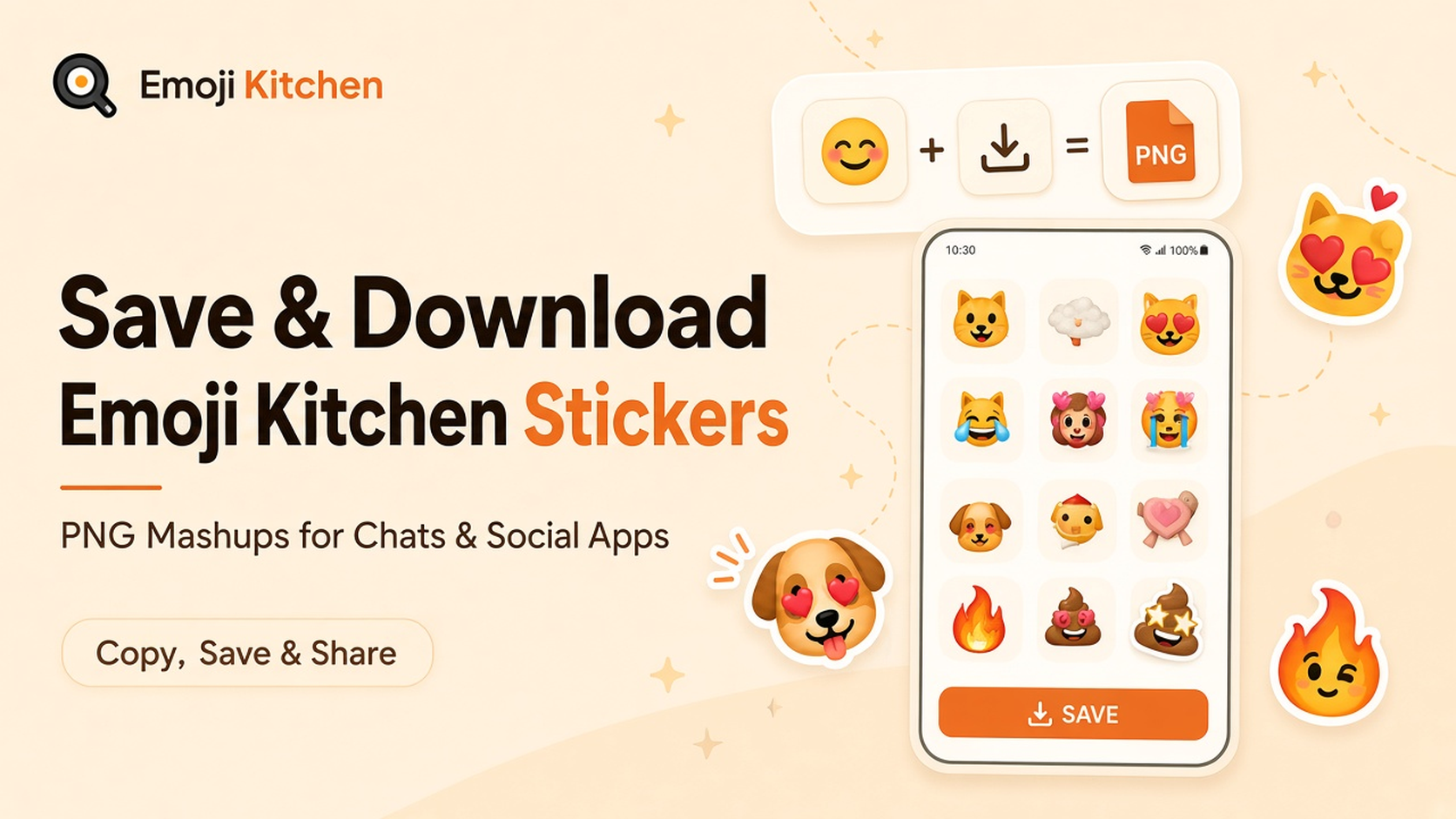
Emoji Kitchen mashups look like emoji, but they usually behave like images. That single detail decides whether you can paste one into a chat, drop it into a story, or keep it for later. This guide walks through saving and downloading sticker-style mashups so you can reuse them on phone or desktop without guessing which button to tap.
Emoji Kitchen Hub (emojikitchenhub.com) is an unofficial, fan-made website. It is not run by Google and is not affiliated with Google, Gboard, or Android. Google’s own Emoji Kitchen feature (when available in Gboard or Search) is a separate product.
What you are saving (and what you are not)
A Kitchen-style result is a sticker-style image made from two compatible emoji. It is not a new Unicode emoji character. You generally cannot:
- Type it as plain text the way you type 🙂
- Put it in a username, bio field, or place that only accepts characters
- Expect every app to treat a paste the same way
You can often:
- Download a PNG (or similar image file)
- Copy an image to the clipboard where the browser allows it
- Attach the saved file through an app’s photo or document picker
If you need a regular emoji character inside a sentence, use the site’s online emoji keyboard instead of a mashup image.
Fast path: save from Emoji Kitchen Hub
Use this when you want a file you can keep, rename, or attach later.
- Open the mixer on the Emoji Kitchen Hub homepage (or the Emoji Maker / Emoji Generator pages).
- Pick a first emoji, then a second emoji.
- Wait for a preview. If nothing appears, that pair is not supported—change one emoji and try again.
- Use Download when it is available to save the result as an image file.
- Check your Downloads folder (desktop) or Files / Photos app (phone) and confirm the file opens.
Tip: On many phones, long-pressing a downloaded image lets you share it straight into Messages, Instagram, Discord, or another app without hunting through folders.
When Copy works—and when it does not
Some browsers let you copy the mashup image to the clipboard. That is handy for apps that accept pasted images. It often fails when:
- The mobile browser blocks image clipboard access
- The destination app only accepts text paste
- You are in a web form or comment box that strips images
If paste does nothing (or pastes empty space), download the file, then use the app’s attach / gallery / photo control. That path is more reliable than clipboard paste on many US messaging and social apps.
Save from Google’s Emoji Kitchen (when you use it)
Google’s feature and this website’s mixer are different products. Controls and available pairs can differ.
On Android with Gboard
If mashups appear above Gboard while you chat:
- Insert or select the sticker-style suggestion in a compatible app.
- Prefer the app’s own save or share flow when it offers one (long-press, share sheet, or “save image”).
- If the sticker only exists as a sent message, open the chat’s media view and save from there when the app allows it.
Exact menus vary by phone maker and chat app. For keyboard setup and missing suggestions, see How to Use Emoji Kitchen in Gboard on Android and the Samsung-focused guide: How to Use Emoji Kitchen on Samsung Galaxy Phones.
On iPhone, desktop, or via Search
Many people reach Google’s experience through Search rather than a keyboard. After you create a mashup there, use whatever download, share, or copy control that interface shows. Results are still images, so treat them like stickers—not typed characters. For iPhone-oriented workflow tips on this site, see How to Use Emoji Kitchen on iPhone.
Keep mashups organized on your device
A little organization saves time when you reuse favorites.
- Rename files with the two emoji ideas in plain words (for example
cat-fire-sticker.png) so search works later. - On iPhone, add downloads to a Photos album or Favorites.
- On Android, pin a Downloads shortcut or move keepers into a dedicated Pictures folder.
- On Windows or Mac, keep a small “stickers” folder on the desktop or in cloud sync if you use the same files across devices.
Browser “recent” lists (such as My Combos on this site) can help in the short term, but they live on that browser. Clearing site data or switching devices can remove them. A downloaded file is the durable copy.
Share after you download
Once you have an image file:
- Open the chat or social app.
- Start a new message or post.
- Tap the paperclip, gallery, photo, or attach control.
- Select the saved mashup.
- Preview before sending so the size and crop look right.
WhatsApp and similar apps often treat Kitchen-style results as images or stickers rather than text. For WhatsApp-specific steps and pitfalls, see How to Share Emoji Kitchen Stickers in WhatsApp.
Want text-style reaction sets instead of images? Browse emoji combos, including love, cute, funny, and pink collections.
Troubleshooting downloads and saves
| Problem | What to try |
|---|---|
| No Download button / greyed out | Confirm a supported pair is showing in the preview first. |
| Download starts but file is missing | Check the browser’s download permission; look in Files → Downloads. |
| Paste does nothing | Download, then attach from the gallery. |
| Image looks huge in chat | That is normal for stickers; crop or resize only if the app offers it. |
| Pair works elsewhere but not here | Different tools ship different artwork sets—try another pair or another entry point. |
| Need a character, not a sticker | Use the emoji keyboard or your system keyboard. |
Quick checklist before you hit send
- Preview shows a real mashup (not an empty box).
- You saved a file or confirmed paste landed as an image.
- The destination app accepts images or stickers.
- Tone fits the chat—mashups read louder than a single text emoji.
- You remember this site is unofficial if you are comparing results to Google’s products.
FAQ
Are Emoji Kitchen stickers real emoji I can type?
No. Supported mashups are sticker-style images, not new Unicode characters. Type regular emoji with your keyboard or the site’s emoji keyboard.
Can I download mashups for free on Emoji Kitchen Hub?
Yes. When a supported result appears, use Download to save an image. No account is required for the basic mixer on this site.
Why does Copy fail on my phone?
Many mobile browsers and apps limit image clipboard paste. Download the file and attach it instead.
Will a saved sticker look the same in every app?
The file itself is the same image, but chats may show it larger, smaller, or as a sticker bubble. Recipients always see an image, not a typed character.
Is Emoji Kitchen Hub the same as Google’s Emoji Kitchen?
No. Emoji Kitchen Hub is unofficial and fan-made. It is not operated by Google. Google’s feature in products like Gboard or Search is separate; available pairs and controls can differ.
Where should I go next?
Try the mixer on the homepage, explore the blog guides, or read the disclaimer and about pages for how this independent site positions itself.
If Emoji Kitchen isn't working, see our Emoji Kitchen not working fixes.
Want mashups on your computer? See how to use Emoji Kitchen on PC, Mac, and Chromebook.
Want mashups in chat? See how to use Emoji Kitchen stickers on Discord.
For a caption or bio, text sets are quicker: see emoji combos for bio.
Sending mashups in a text? See how to use Emoji Kitchen in Google Messages.
Sharing mashups on Instagram? See how to use Emoji Kitchen on Instagram.
Try it yourself with the emoji maker or open Emoji Kitchen to mix two emojis into a sticker.